
Patch Compliance report
The Patch Compliance report provides a clear, customer-friendly view of patch status across all devices. It displays the percentage of fully patched devices, highlights missing patches, and summarizes recent patch activity. Built on the existing Analytics data model, this report delivers accurate patch information in a clean, printable format.
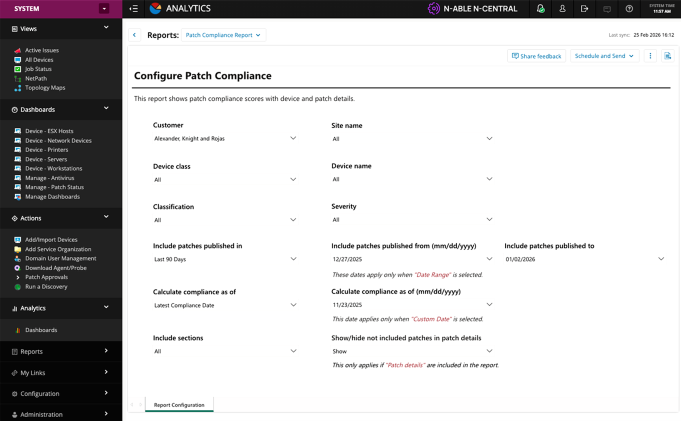
You can filter the report by patch classification, severity, and other criteria. As you adjust filters, the compliance scores update automatically so you can tailor the view for each customer.
The Patch Compliance report:
-
Shows customers that their systems are secure and up to date
-
Aligns with industry guidance from NIST and CISA
-
Saves time with automated or scheduled reporting
Report sections
The Patch Compliance report contains three main sections:
-
Overview: A high-level summary of compliance across all devices.
-
Device Details: Compliance scores and the patch status for each device.
-
Patch Details: Patch-level information, including install and approval status.
Overview
The Overview section provides a quick summary of key metrics for your devices and patches. Use these metrics to understand overall compliance, track patching progress, and identify areas that need attention.
-
Unique Devices: The total number of devices included in the report.
-
Compliant Devices: Devices that have all required patches installed.
-
Total Patches: The number of published patches included based on your filter selections.
-
Not Included Patches: Patches that have these statuses: Declined, Not Approved, No Approval, and Removed. These patches are excluded from Patch Installation % and other compliance score calculations but remain visible in the Patch Details section of the report.
-
Installed Patches: The number of patches successfully installed.
It provides two key scores:
-
Device Compliance Score
-
Patch Installation %
The gauges use red, amber, and green colors to show overall health at a glance.
-
Tips
-
Compare metrics to quickly see the gap between total devices and compliant devices.
-
Monitor installed patches versus total patches to track deployment progress.
-
Use Not Included Patches to understand which patches are intentionally excluded and why.
-
Leverage this summary to prioritize patching efforts and focus on devices that need attention.
Device Compliance Details
The Device Compliance Details table provides a comprehensive view of each device in your environment and its compliance status. Use this table to monitor patching progress, identify non-compliant devices, and prioritize remediation. You can filter, sort, group, and export the data to Excel to analyze patching status across your environment.
| Field | Description |
|---|---|
| Site Name | The site where the device is located. |
| Days Since Reboot | The number of days since the last reboot. |
| Device Class | The type of device (desktop, server, laptop, etc.). |
| Device Name | The device unique name. |
| OS Family | The operating system family the device uses. |
| Device Compliant | Indicates whether the device is compliant. |
| Patch Installation % | The percentage of applicable patches installed. |
| Missing Patch Count | The number of patches that have not been installed. |
| Failed Patch Count | The number of patches that failed to install. |
| Last Failure Date | The most recent date a patch failed. |
Tips
-
Filter by any field to focus on specific sites, device types, or compliance statuses.
-
Sort by Patch Installation %, Missing Patch Count, or Last Failure Date to quickly identify devices that need attention.
-
Group devices by site or device class to see overall trends and assign remediation tasks efficiently.
-
Use the table to generate summaries or reports that help prioritize patching and maintenance work.
Patch Details
The Patch Details table provides in-depth information about each patch on every device. Use this table to track patch status, prioritize updates, and manage compliance across your environment. The table allows filtering, sorting, and grouping to help you focus on the patches or devices that need attention.
| Field | Description |
|---|---|
| Site Name | The site where the device is located. |
| Device Class | The type of device (for example, desktop, server, or laptop). |
| Device Name | The device unique name. |
| Patch Name | The name of the patch. |
| KB Number | For Microsoft patches, the associated Knowledge Base (KB) number. |
| Patch Status | The current status of the patch (installed, missing, failed, etc.). |
| Vendor | The vendor who released the patch. |
| Classification | The patch type (such as security, critical, or update). |
| Severity | The vendor-assigned severity rating. |
| Publish Date | The date the patch was released. |
| Approval Date | The date the patch was approved for installation. |
| Installation Date | The date the patch was successfully installed. |
| Pending Due to Failure | Indicates whether the patch is still pending because a previous installation attempt failed. |
| Days Since Publish Date | The number of days since the patch was published. |
Tips
-
Filter by site, device class, patch status, or vendor to focus on specific updates or locations.
-
Sort by Patch Status, Severity, or Days Since Publish Date to identify critical or overdue patches.
-
Group by classification or device class to spot trends and assign remediation work efficiently.
-
Use the table to track compliance over time, monitor patch adoption, and prioritize updates based on risk.
Filters
You can control which devices and patches appear in the Patch Compliance report through filters. All sections of the report recalculate automatically in real time as you apply or modify filter selection so that see accurate compliance results for the data you selected.
| Filter Name | Group | Default | What it does |
|---|---|---|---|
| Customer | Customer & Site | First customer in the list |
Shows Patch Compliance results for the customer you choose. |
| Site | Customer & Site | All sites |
Filters report results to one or more sites under the selected customer. The site list updates automatically based on the chosen customer. |
| Device Class | Device | All classes | Filters by device type |
| Device Name | Device | All devices | Filters by a specific device |
| Patch Classification | Patch | All classifications | Filters by patch type (e.g., security) |
| Patch Severity | Patch | All severities | Filters by how critical a patch is |
| Include Patches Published In | Date | First dropdown value | Filters by publish date or time range |
| Calculate Compliance As Of | Date | Today | Sets the date used to calculate compliance |
Tips
-
Refine the dataset: Each filter reduces the information shown in the report to only what matches your selection.
-
Select values in one filter and narrow the options available in others. For example, select a customer to limit the Site and Device Name filters to only data for that customer.
-
Filter update visuals instantly: Compliance scores, charts, and tables refresh as soon as you change a filter.
-
Filter reset scoring: Device Compliance and Patch Compliance scores recalculate based on the patches and devices included after filtering. If you remove patches through filters, those patches are not counted as missing.
-
Change the publish date or Calculate Compliance As Of date to adjust which patches and compliance states the report considers.
Patch Statuses in Analytics
The Patch Statuses table shows the current state of each patch. Understanding these statuses helps you track compliance, prioritize updates, and identify patches that need attention.
| Status | Description |
|---|---|
| Installed | Patch is successfully installed. |
| Non Actioned | Discovered but not yet approved or acted on in any way. |
| Not Required | Patch is not installed, and approval is one of the following statuses: Declined, Not Approved, or Uninstall. |
| Patch Removed | Patch was installed but later removed. |
| Pending Installation | Patch is approved but not yet installed. |
The system lists failed and superseded patches under these statuses and flags them accordingly.
Tips
-
Filter by status to focus on patches that are pending, failed, or uninstalled.
-
Sort by status to quickly identify patches that require action.
-
Track trends in approvals, installations, and removals to maintain compliance and reduce security risk.
-
Use this information to prioritize remediation efforts and ensure devices stay protected with the latest patches.
FAQ
Q: How are superseded patches treated?
All patches are shown and considered for scoring.
Q: After I set my filters, which patches are included?
Only patches that:
-
Match your filter selections
-
Are not Declined or Not Approved
-
Appear in the Patch Details table